
 admin
admin What you need before you start
- A phillips screwdriver and a flathead screwdriver
- A small flashlight or your phone’s light
- AA or AAA batteries (most smart locks need 4–8 fresh ones)
- Your home Wi-Fi password (for the bridge setup)
- Your front door measurements (door thickness, latch backset)
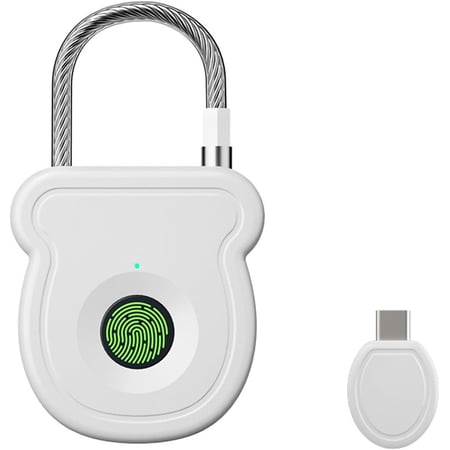
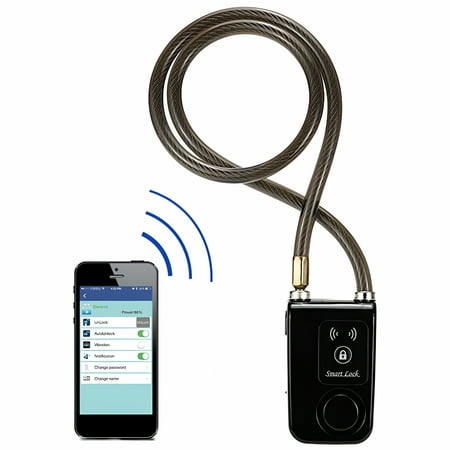

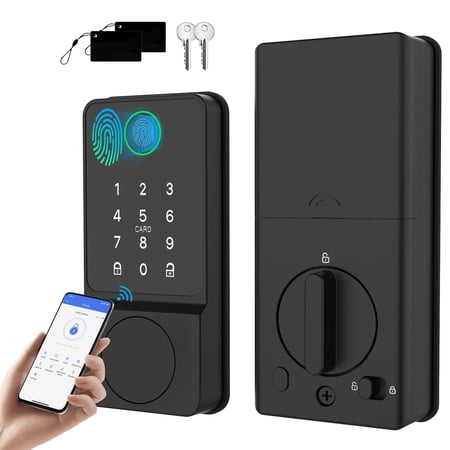

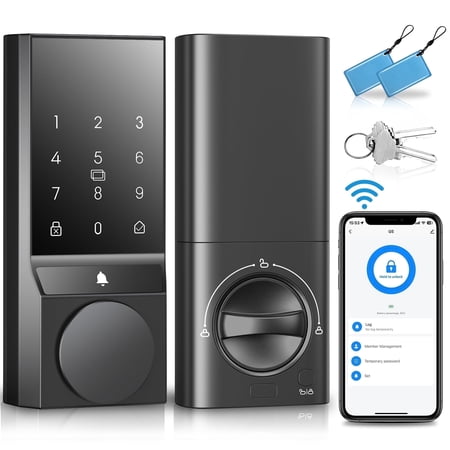
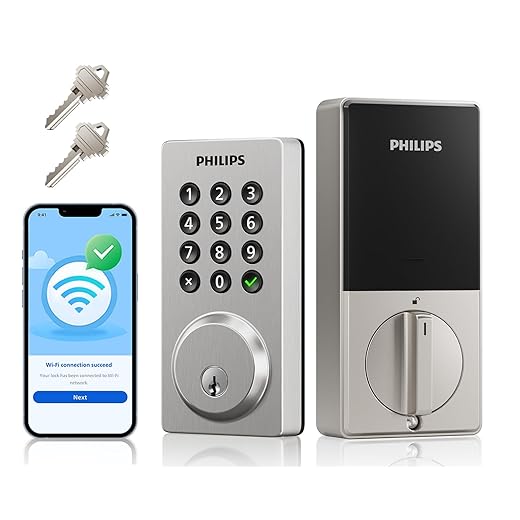
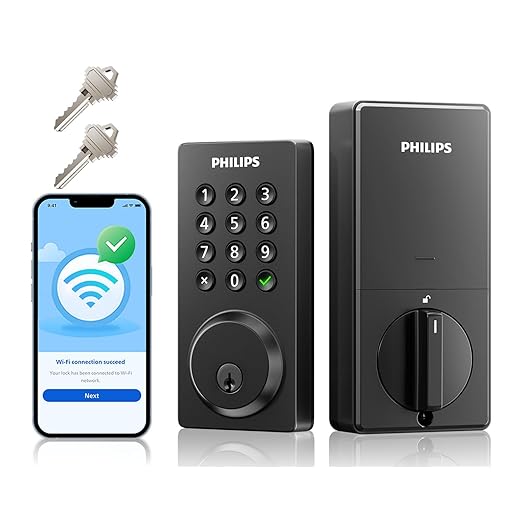



My kid lost her house key three times in one school year — and I realized the $250 I spent on a smart lock paid for itself before the back-to-school photo was developed.
A smart lock isn’t about convenience — it’s about every member of the household getting their own access code that you can change in five seconds. No more spare keys under flower pots, no more locksmith calls, no more wondering who has a copy.
This is the step-by-step process I use when installing a smart lock on a standard residential door. We’ll cover compatibility checks, the install (mostly 15–20 minutes), the network setup (Matter changes the game in 2026), and how to set up codes that don’t lock you out at the worst moment.
How to install and set up a smart lock — the full process
1. Verify your door is compatible
Measure your door thickness (1¼” to 2″ is standard) and your latch backset (2⅜” or 2¾” — measure from the door edge to the center of the latch hole). Almost every smart lock supports both, but some require adapters.
Confirm your existing deadbolt is a standard residential type, not a mortise lock. Most apartment doors and some older homes use mortise locks — these need specialized smart locks (Yale Assure with mortise kit, August Smart Lock Pro)
- Door thickness: 1¼" to 2" works with standard kits
- Backset: 2⅜" or 2¾" — standard residential
- Existing lock type: standard deadbolt (not mortise)
- Hole size: standard 2⅛" cross-bore
2. Choose the right form factor
Three options in 2026: full deadbolt replacement (the keypad you see on the outside), retrofit interior-only (looks like a regular deadbolt outside, smart on the inside), or smart cylinder (replaces only the cylinder, lowest profile).
Renters: stick with the retrofit interior-only — you keep your original keyed exterior so the landlord never knows.
3. Match the connectivity to your needs
Wi-Fi direct: simplest setup but drains batteries fastest. Replace every 2–4 months.
Bluetooth + bridge: bridge plugs into a wall outlet, lock uses Bluetooth to talk to it. Best battery life (6–12 months).
Matter / Thread: the 2026 game-changer. Lower power than Wi-Fi, works with any smart home ecosystem (Apple Home, Google Home, Alexa). Most new locks support it.
Z-Wave: still common, requires a Z-Wave hub (SmartThings, Hubitat, Home Assistant). Worth it if you already have a Z-Wave home.
4. Do the physical install
Remove the existing deadbolt: unscrew the interior plate, slide the deadbolt latch out, unscrew the bolt from inside the edge of the door.
Install the new latch (sometimes the existing one works, sometimes you swap it out).
Install the exterior keypad: it threads through the cross-bore. Make sure cables route through the hole.
Install the interior unit: align with the latch, screw in place, connect the cable from the exterior unit.
Test manually: turn the thumb-turn or keypad. The bolt should extend and retract smoothly. If it sticks, the latch is misaligned — don’t skip this step.
5. Pair with the app and your smart home
Install the manufacturer’s app, create an account, follow the in-app pairing. For Matter locks: scan the Matter QR code with your iPhone or Android. The lock joins all your ecosystems at once.
Set the lock’s name to something you’ll recognize in Apple Home or Google Home (“Front Door” not “August Lock 4F22”).
6. Set up your access codes thoughtfully
Create a master code for yourself, a personal code for each family member, and a temporary code for cleaners or contractors. Don’t share codes between people — the whole point is being able to revoke one person’s access without affecting anyone else.
Avoid obvious codes: not 1234, not your address number, not your birthday. Use 6 digits if your lock supports it.
Schedule auto-expire on contractor codes (every smart lock supports this) so you don’t have to remember to delete them later.
7. Test the failure modes
Manually lock and unlock from the inside thumb-turn.
Test the physical key (every smart lock should have an emergency keyway).
Let the batteries go low — most locks alert at 20%. Replace before they die.
Test from outside Wi-Fi (use cellular data on your phone) to confirm remote access works.
Watch this before you buy
A short hands-on video covering the same picks and trade-offs we just walked through.
Smart locks earn their keep — if you set them up right
The install is the easy part. The setup is what saves your sanity. Take 15 minutes to plan your access codes, name conventions, and Matter pairings up front, and you’ll never think about keys again.
Live Amazon pricing in the table above. Yale, Schlage, August, and Aqara lead in 2026 — each with different ecosystem strengths. Pick the one that matches the smart-home platform you’re already using.
As an Amazon Associate, SmartBuy earns from qualifying purchases at no extra cost to you.





 Germany
  France
  Netherlands
  Canada
  United Kingdom
  United States
  Turkey
  Croatia
  Spain
Spain  Italy
Italy  India
India